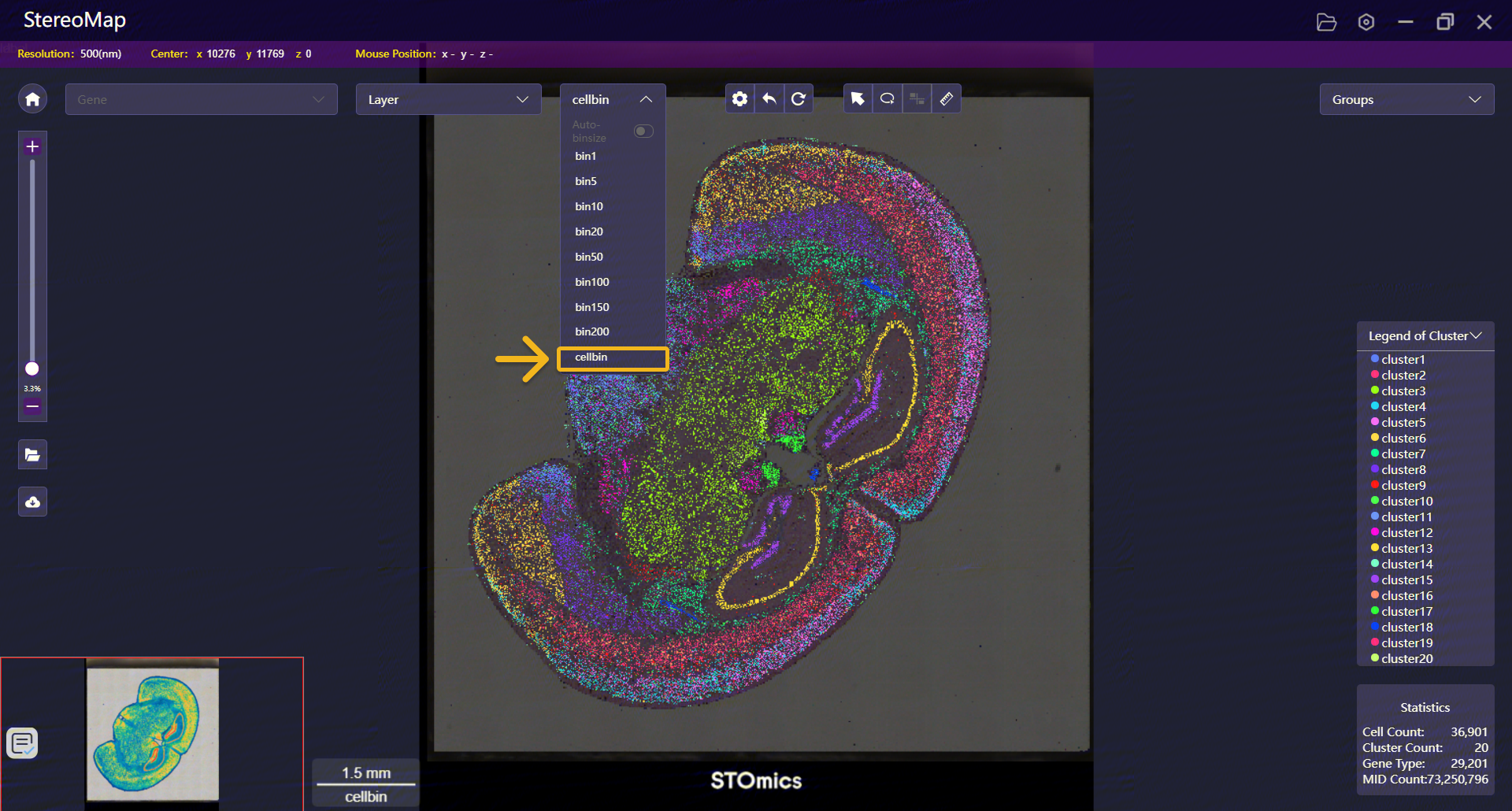
Learn how to import custom segmentation masks into StereoMap and regenerate CellBin matrices for improved spatial transcriptomics resolution.
Introduction
In Stereo-seq data analysis, image processing is a key step in generating accurate CellBin results. Factors such as image quality, registration performance, and the precision of cell segmentation all directly impact CellBin accuracy and downstream analysis.
In the SAW workflow, the built-in automatic segmentation algorithm can typically detect the boundaries of most cell nuclei. However, when working with images with suboptimal nuclear staining, segmentation performance may degrade. In these cases, segmentation still runs, but the results may be suboptimal, potentially leading to over-segmentation, under-segmentation, and other issues. Additionally, in certain situations—such as when image QC fails and automatic registration cannot be performed, or for H&E-stained FFPE samples—SAW currently does not perform automatic cell segmentation by default. When a CellBin matrix is needed in these scenarios, users must supplement the segmentation step through alternative approaches.
In cases where segmentation results are suboptimal or missing, StereoMap provides manual segmentation tools to correct errors in local regions and obtain more accurate cell boundaries suitable for downstream analysis. However, manual editing becomes inefficient and impractical when working with large tissue areas or multiple samples. In such cases, applying third-party cell segmentation algorithms (such as Cellpose, StarDist, or DeepCell) to generate a custom segmentation mask and replacing SAW’s default output is an effective way to improve segmentation accuracy. This allows users to recompute an optimized CellBin matrix, achieve more precise cell boundaries, and ultimately increases the reliability of downstream spatial gene expression analysis.
In addition, different segmentation algorithms may perform variably depending on tissue type, staining conditions, or image quality. In practice, it can be beneficial to test and compare multiple algorithms based on the characteristics of your data to obtain more reliable segmentation results. In the following sections, we will demonstrate how to integrate third-party segmentation results into the StereoMap and SAW workflow to regenerate optimized CellBin matrices.
Requirements
Before getting started, please make sure you have prepared the following:
SAW analysis results (
visualization.tar.gz)After the SAW workflow finishes, a
visualization.tar.gzfile will be generated in the/outs/directory. It contains the spatial gene expression matrix and visualization outputs.After downloading and extracting this file locally, you will find
.gefmatrix file,.stereovisualization file, and more. If automatic image analysis was enabled in the SAW workflow, the.tar.gzimage file will also be included.The “registered” TIFF image (
*_regist.tif)If the image was processed in the SAW workflow, a registered TIFF image will be generated under the
/outs/image/directory.If manual registration was performed in StereoMap Image Processing, the registered TIFF image will be saved to the user-selected output directory.
Third-party segmentation must be performed on this registered image (not the raw image), as its size and orientation are aligned with the spatial matrix.
A binary TIFF mask from a third-party segmentation tool
TIFF, single-channel grayscale
uint8binary image (1 = cell, 0 = background)Same dimensions and resolution as the
*_regist.tifGenerate your mask based on
*_regist.tif.Make sure the mask meets the following requirements:
StereoMap desktop software (version ≥ 4.0.0)
Used to import the third-party binary TIFF mask, replace the automatic segmentation mask in the Cell Segmentation step, and export the updated results.
SAW analysis workflow software (version ≥ 8.0.0)
Run
SAW realignafter replacing the mask to recompute the CellBin matrix.
Analysis Guide Data Download
You can download the example dataset used in this Analysis Guide from our public datasets. This mouse brain dataset is available here. Key information is shown below:
Chip SN:C04496D6
Product: Stereo-seq OMNI FFPE V1.0
Staining type: H&E staining
Note: The default automated image processing does not include cell segmentation, so third-party segmentation is required to supplement the results. The Cellpose-SAM segmentation results used in this tutorial are available here.
Import the image in StereoMap
Launch StereoMap, open the Image Processing module. Select the staining type and upload your image.
If automatic image analysis was enabled in the SAW workflow, it is recommended to upload the
.stereofile directly, as it contains registration information.If the image failed QC or was not used in the initial SAW analysis, upload the
.tar.gzimage package instead.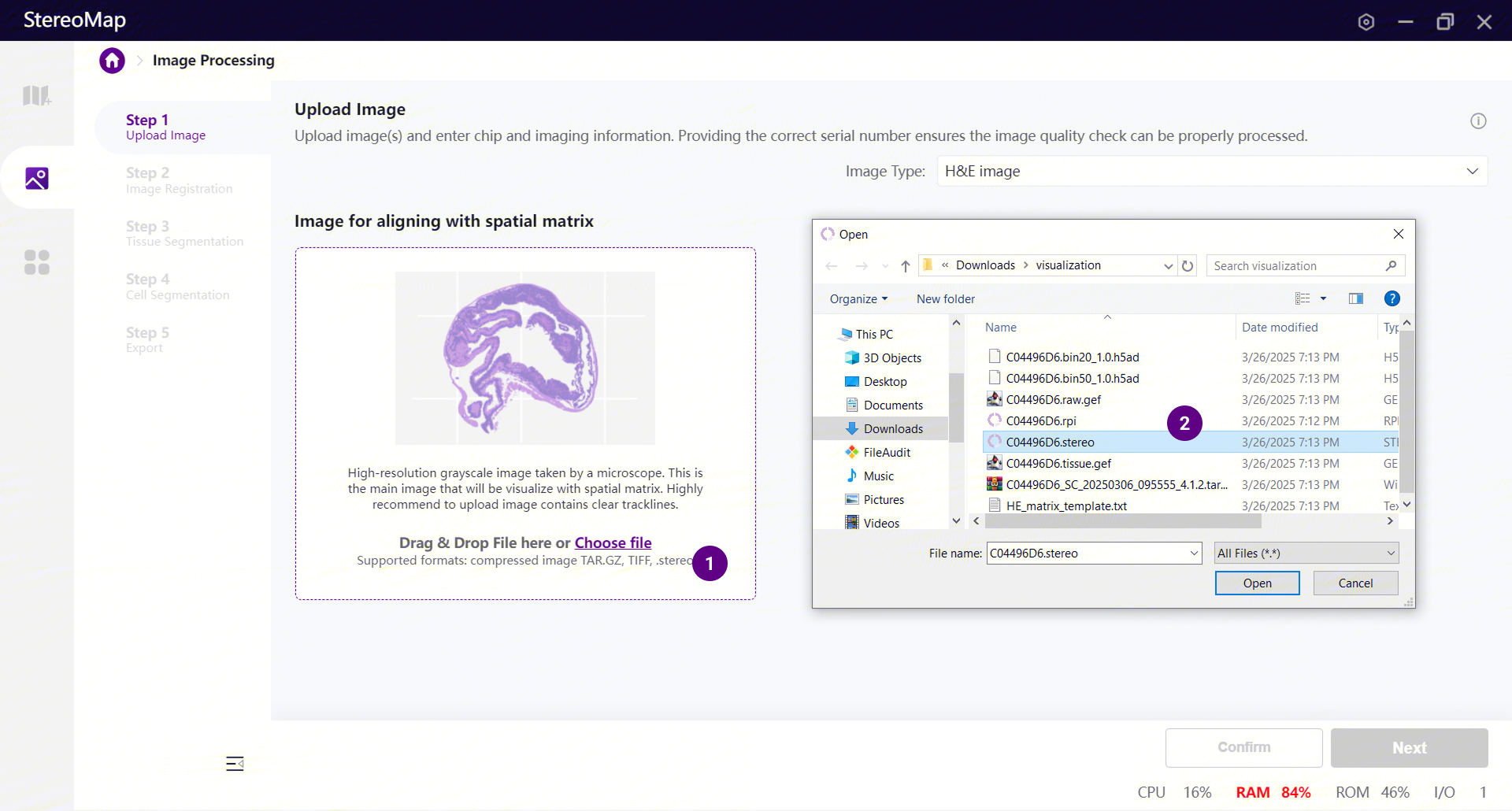
If a
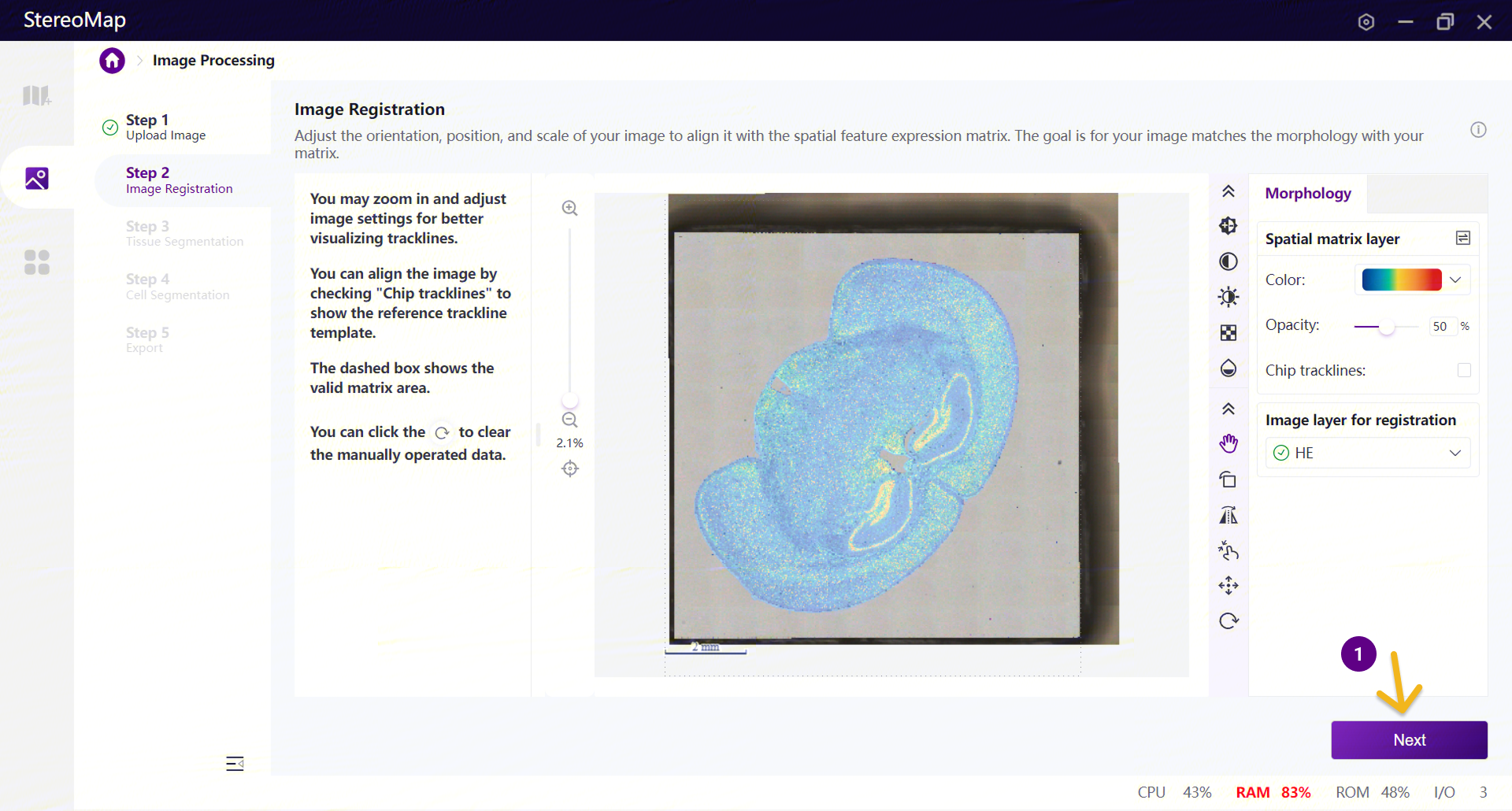
.stereofile is uploaded and registration looks correct, simply click Next in Step 2: Image Registration to proceed.If automatic registration is incorrect, or if a
.tar.gzfile is uploaded:Manually import the matrix and perform registration (Morphology or Feature Point).
Then click Next in Step 3 and Step 4 to reach Step 5: Export.
Export the results — a
*_regist.tiffile will be generated in your selected output directory.The
*_regist.tifimage is aligned with the spatial matrix in both size and orientation. During CellBin generation, pixel coordinates are mapped one-to-one, so it’s important to perform any third-party segmentation on this exported*_regist.tif. Please also make sure that the output binary mask matches its size, resolution, and orientation exactly. Otherwise, misaligned cell boundaries or unexpected results may occur during therealignstep.
Replacing the Cell Segmentation Mask
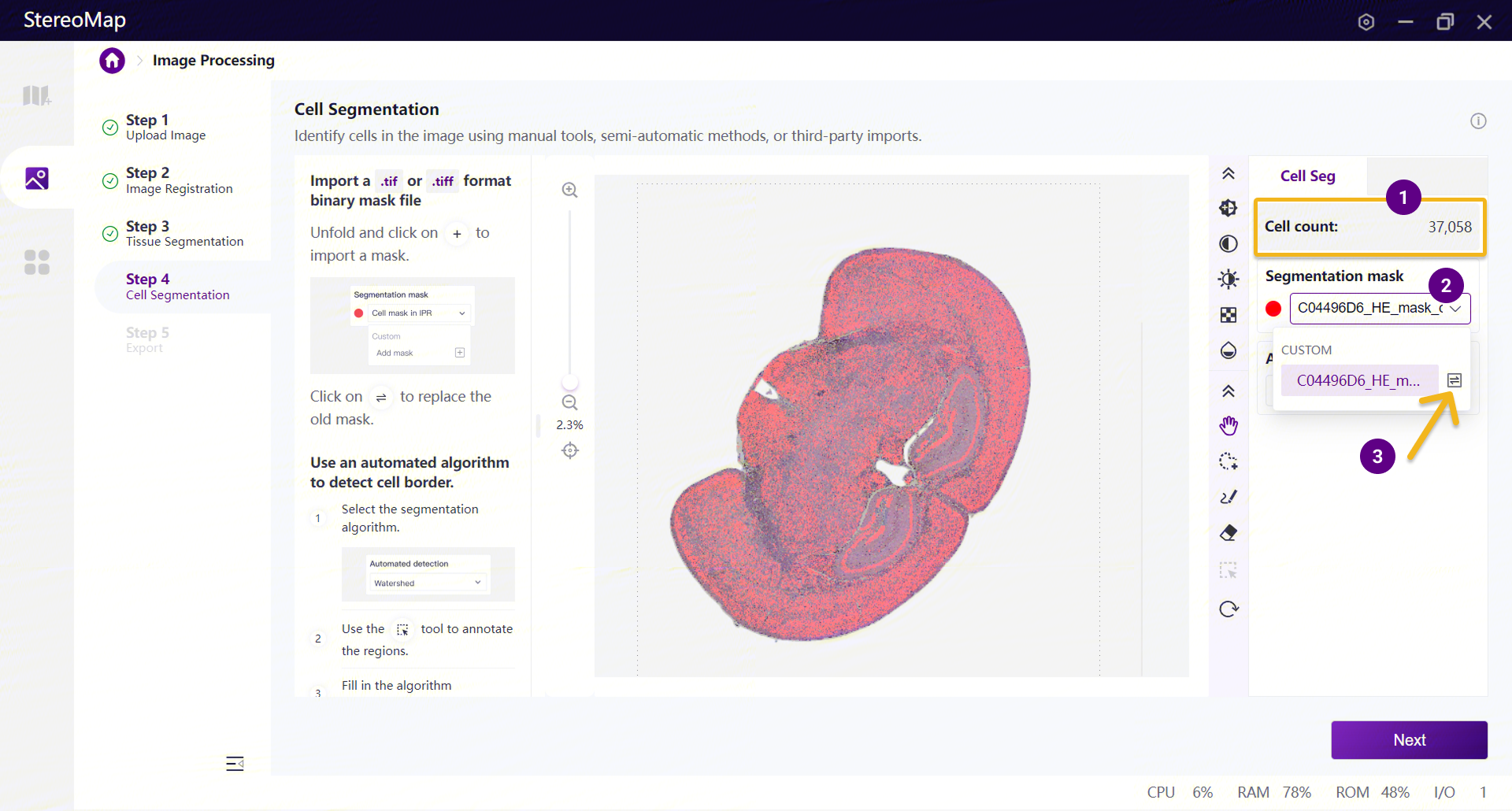
Navigate to Step 4: Cell Segmentation.
In the Segmentation mask dropdown, click the “+” button next to Add mask under Custom to add a mask. In the file browser that pops up, select the TIFF mask generated by your third-party segmentation tool.
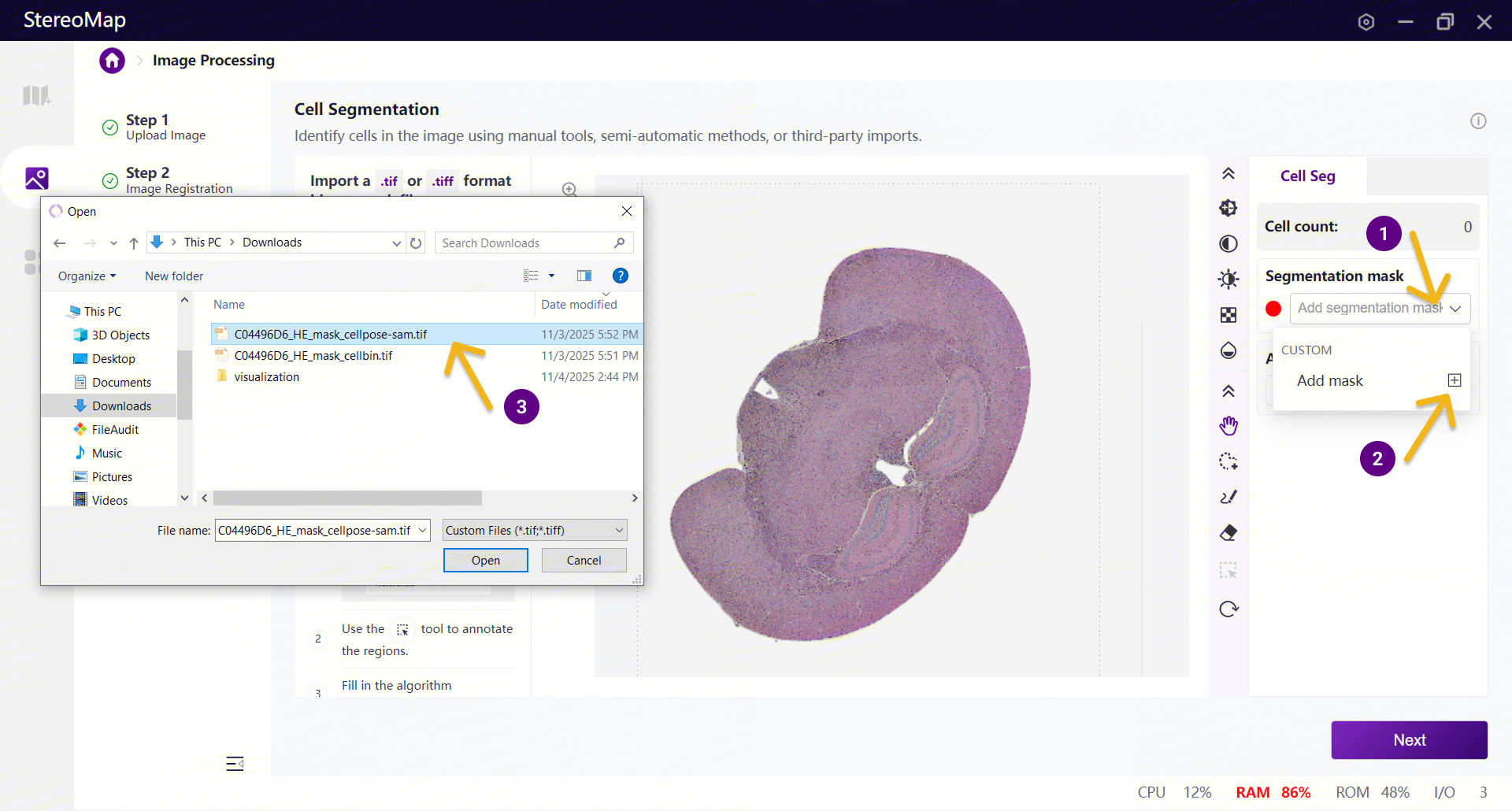
After uploading, the mask will overlay the canvas as cell contours, with the registered microscopy image shown in the background. You can zoom in to inspect the segmentation quality and use the manual editing tools to adjust local regions. Once a new mask is uploaded, the software will automatically recalculate the total cell count.
If a mask has already been uploaded but the result is not satisfactory, you can replace it by opening the Segmentation mask dropdown again, clicking the “←→” icon next to the previously uploaded mask under Custom, and selecting a new TIFF mask.
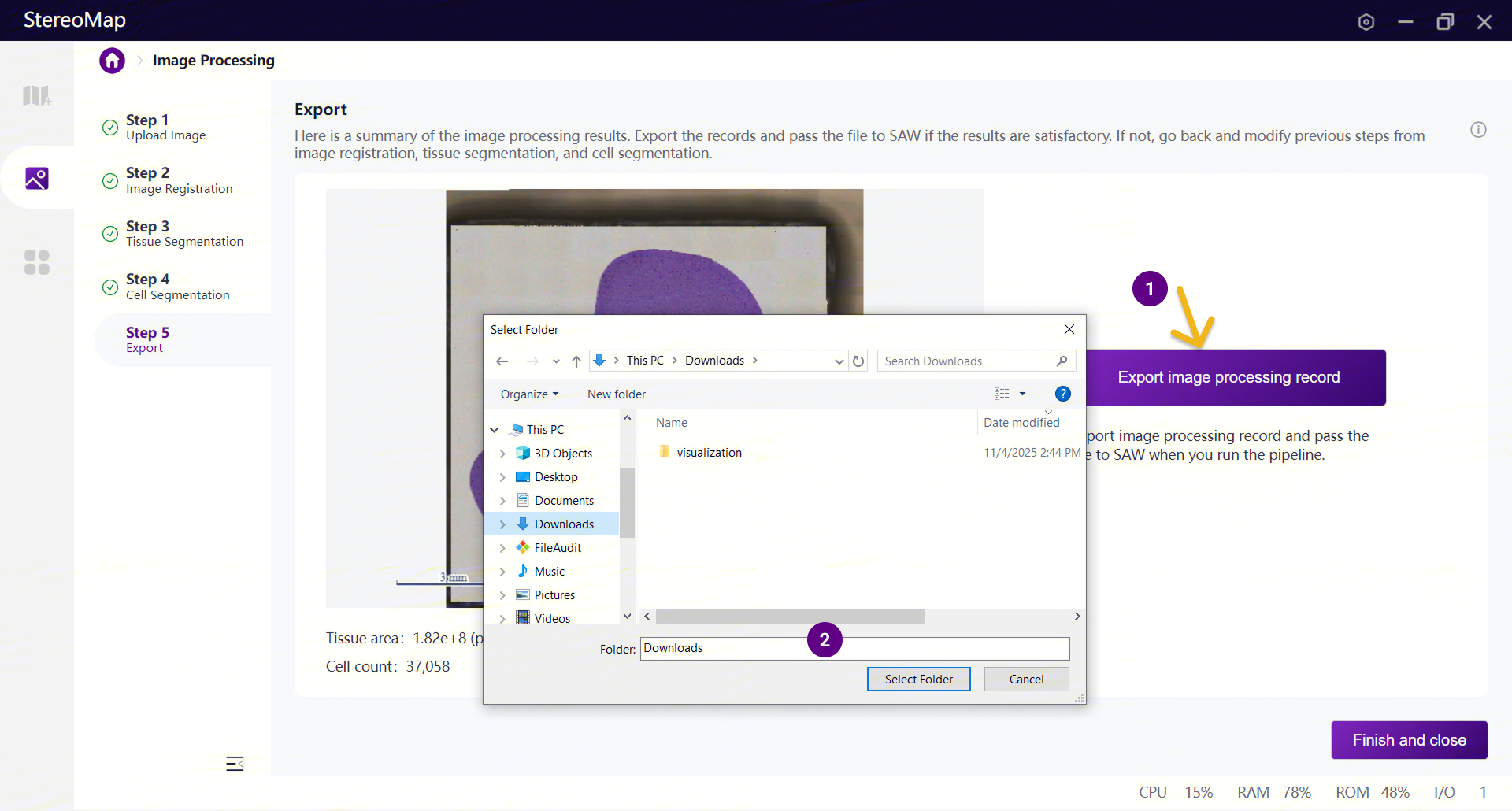
After replacing the mask, go to Step 5: Export and select the output directory to save the updated results.
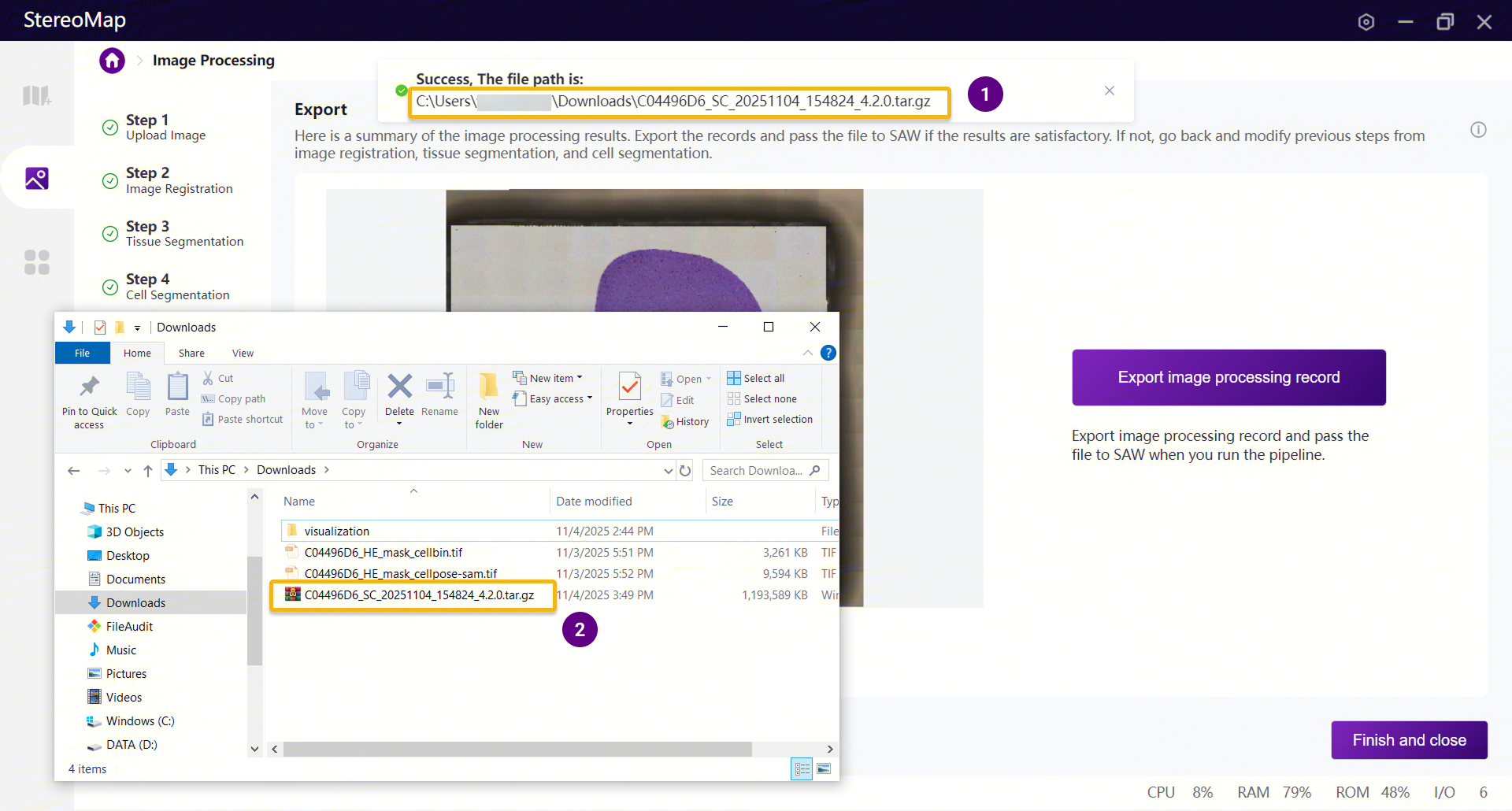
The updated output is an image
.tar.gzpackage with the mask replaced. Once generated successfully, you can view the full output path in the banner notification at the top of the interface.
Recalculate the CellBin Matrix
Upload the image
.tar.gzpackage exported from StereoMap to the server where SAW is installed, and run it through the SAWrealignpipeline. This process will regenerate the CellBin matrix based on the cell segmentation results from the third-party algorithm.# Input the updated image .tar.gz into the saw realign pipeline to regenerate the CellBin matrix
saw realign \
--id=C04496D6_realign \
--sn=C04496D6 \
--count-data=C04496D6_Mouse_Brain \
--realigned-image-tar=C04496D6_SC_20251104_154824_4.2.0.tar.gz \
--threads-num=24Note that the
--count-dataparameter should point to theSAW countoutput directory that was used in Step 1 when the.stereofile was submitted.After the pipeline finishes, the
.cellbin*.h5adand.cellbin.geffiles in theoutsdirectory are the newly generated cell matrices based on the third-party segmentation results. The cell statistics and clustering shown in the.htmlreport are also recalculated using these updated matrices.
outs
├── analysis
│   ├── ...
│   ├── C04496D6.cellbin_1.0.adjusted.h5ad
│   ├── C04496D6.cellbin_1.0.adjusted.marker_features.csv
│   ├── C04496D6.cellbin_1.0.h5ad
│   └── C04496D6.cellbin_1.0.marker_features.csv
├── bam
│   └── ...
├── C04496D6.report.html
├── feature_expression
│   ├── C04496D6.adjusted.cellbin.gef
│   ├── C04496D6.cellbin.gef
│   └── ...
├── image
│   ├── C04496D6_HE_mask_edm_dis_10.tif
│   ├── C04496D6_HE_mask.tif
│   └── ...
├── visualization.tar.gz
└── visualization.tar.gz.md5

5 directories, 23 files