Introduction
In the standard STOmics analysis workflow, SAW generates Cellbin GEF files containing gene expression matrices and spatial coordinates. While SAW provides initial clustering, researchers often perform advanced downstream analysis using third-party tools such as Scanpy, Seurat, or specialized algorithms like cell2location or RCTD (Robust Cell Type Decomposition) to identify precise cell types or functional states.
However, these refined annotations typically exist only within the coding environment (Python/R) or as static images, disconnecting them from the raw spatial data. This creates a gap where the powerful, interactive visualization capabilities of StereoMap cannot be utilized for the newly defined cell types.
This guide bridges that gap. It provides a step-by-step workflow to import your custom cell annotations—generated from any downstream analysis—back into the original Cellbin GEF file.
Requirements
Before getting started, please make sure you have prepared the following:
Environment: It is highly recommended to perform this workflow in a Jupyter Notebook.
Stereopy: Ensure Stereopy (>=1.0.0) is installed (
pip install stereopy).
SAW: Access to the SAW software package (specifically the
cellShapetool).
Datasets:
Input Cellbin GEF file (
.gef).Annotation file (
.h5ador.csv) containing cell coordinates and annotation labels.
Step-by-step Guide
Step 1: Load the Cellbin GEF
First, load the GEF file and extract the spatial coordinates of the cells.
import stereo as st
import pandas as pd
import numpy as np

# 1. Read the cellbin GEF file
# Replace 'input.cellbin.gef' with your actual file path
gef_path = "/path/to/input.cellbin.gef"
data = st.io.read_gef(gef_path, bin_type="cell_bins")

# 2. Extract spatial coordinates (x, y) to the metadata DataFrame
# This is crucial for matching cells between files
data.cells.to_df()['x'] = data.cells_matrix['spatial'][:, 0]
data.cells.to_df()['y'] = data.cells_matrix['spatial'][:, 1]

print(f"Loaded {data.cells.to_df().shape[0]} cells.")
Note: It is highly recommended to backup your original Cellbin GEF file before proceeding.
Step 2: Prepare and Merge Annotations
Load your annotation file. You can import data from an H5AD file or a CSV file.
Option A: From AnnData (.h5ad)
# Load annotation information
anno_path = "/path/to/annotation.h5ad"
anno = st.io.read_h5ad(anno_path, bin_type="cell_bins")

# Merge based on x, y coordinates
# Ensure the annotation column (e.g., 'anno_rctd') exists in the h5ad file
merged = data.cells.to_df()[['x', 'y']].merge(
    anno.cells.to_df()[['x', 'y', 'anno_rctd']],
    on=['x', 'y'],
    how='left'
)

# Assign the merged annotation to the main data object
# Fill missing values with 'others'
data.cells.to_df()['anno_rctd'] = merged['anno_rctd'].fillna('others').values
Option B: From CSV (.csv)
# Load annotation information
csv_path = "/path/to/annotation.csv"
anno_df = pd.read_csv(csv_path)

# Check your CSV column names.
# In this example, we assume columns are: 'X coordinate', 'Y coordinate', 'Label name'
merged = data.cells.to_df()[['x', 'y']].merge(
    anno_df[['X coordinate', 'Y coordinate', 'Label name']],
    left_on=['x', 'y'],
    right_on=['X coordinate', 'Y coordinate'],
    how='left'
)

# Assign annotation
data.cells.to_df()['anno_rctd'] = merged['Label name'].fillna('others').values
Step 3: Update the GEF File
Write the new annotation column back into the Cellbin GEF file.
# Update the original GEF file with the new cluster key
st.io.update_gef(
    data=data,
    gef_file=gef_path,
    cluster_res_key="anno_rctd"  # The column name you added in Step 2
)
print("GEF file updated successfully.")
Step 4: Generate Pre-rendered Visualization Data (Crucial)
To optimize performance in StereoMap, this step writes pre-calculated cell boundary (polygon) information into the GEF file. This significantly accelerates the loading speed of the software, as StereoMap does not need to calculate shapes on the fly. This step utilizes the cellShape script from the SAW package.
You can run this step directly in your Notebook or via a standard terminal.
Option 1: Run in Jupyter Notebook Use the ! magic command to execute shell commands within the notebook cell.
# Define paths to SAW and your file
# Please update the paths according to your environment
saw_path = "/path/to/SAW/package/saw-8.1.3"
gef_file = "/path/to/input.cellbin.gef"

# Set environment variables and run the script
!export HDF5_USE_FILE_LOCKING=FALSE
!export LD_LIBRARY_PATH={saw_path}/anaconda/lib:$LD_LIBRARY_PATH
!{saw_path}/anaconda/bin/python {saw_path}/lib/cellshape/cellShape.pyc -i {gef_file} -o {gef_file}
Option 2: Run in Shell / Terminal If you prefer using the command line, open your terminal and run the following commands:
# 1. Set environment variables
export saw_path=/path/to/SAW/package/saw-8.1.3
export LD_LIBRARY_PATH=${saw_path}/anaconda/lib:$LD_LIBRARY_PATH
export HDF5_USE_FILE_LOCKING=FALSE

# 2. Run the cellShape script
${saw_path}/anaconda/bin/python ${saw_path}/lib/cellshape/cellShape.pyc \
    -i /path/to/input.cellbin.gef \
    -o /path/to/input.cellbin.gef
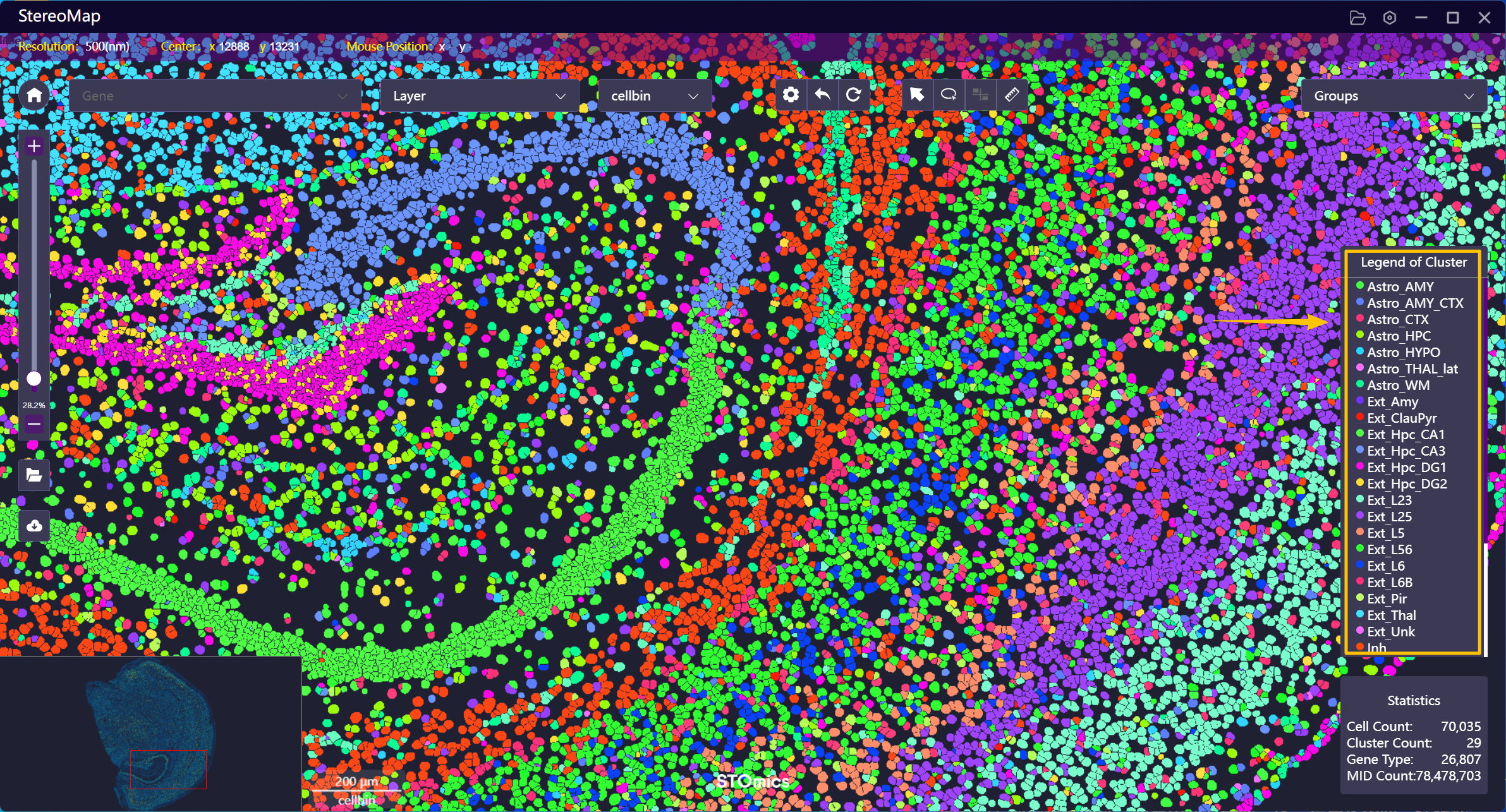
Step 5: Visualization in StereoMap
Launch StereoMap and load the updated .gef file. In the right control panel, locate the Clustering or Annotationdropdown.